Affichage des articles dont le libellé est app. Afficher tous les articles

lundi 6 avril 2015

SMARTHWATCH - software - U8 Watch - M26 Rwatch

SMARTHWATCH version 7.1.1, Android software to fully use your smartwatch / connected U8 Watch ou Rwatch M26

Smarthwatch is a complement software for the U8 Watch and M26 Rwatch with features like select the notifications you want to appear on your Smartwatch helping you to maintain or improve your condition, to tweak the connected watch functions

A complete description of the functions of the U8 Watch at this adress and the Rwatch M26 at this adress

In this article you will see how to get this software and install and configure watch and Android phone for the two devices to communicate.

You will see how to fine tune the connected functions, formatting functions (fitness) and the use of multimedia software, including remote camera, for playing your favorite music contained on your phone and all remotely controlled from it

How to get the software SMARTHWATCH


If the software is installed, go below in this article in the "Using Software" section

Two methods are available to you:

  • from your phone if it has access to the internet (check that there is no download fee)
  • from your computer connected to internet

From your phone if it has internet access


Open a web browser and enter the following without the quotes: "ftp://211.144.196.251"
a window asking you to log opens, enter the following information:
     Onscreen user name: 123456
     Password: 123456

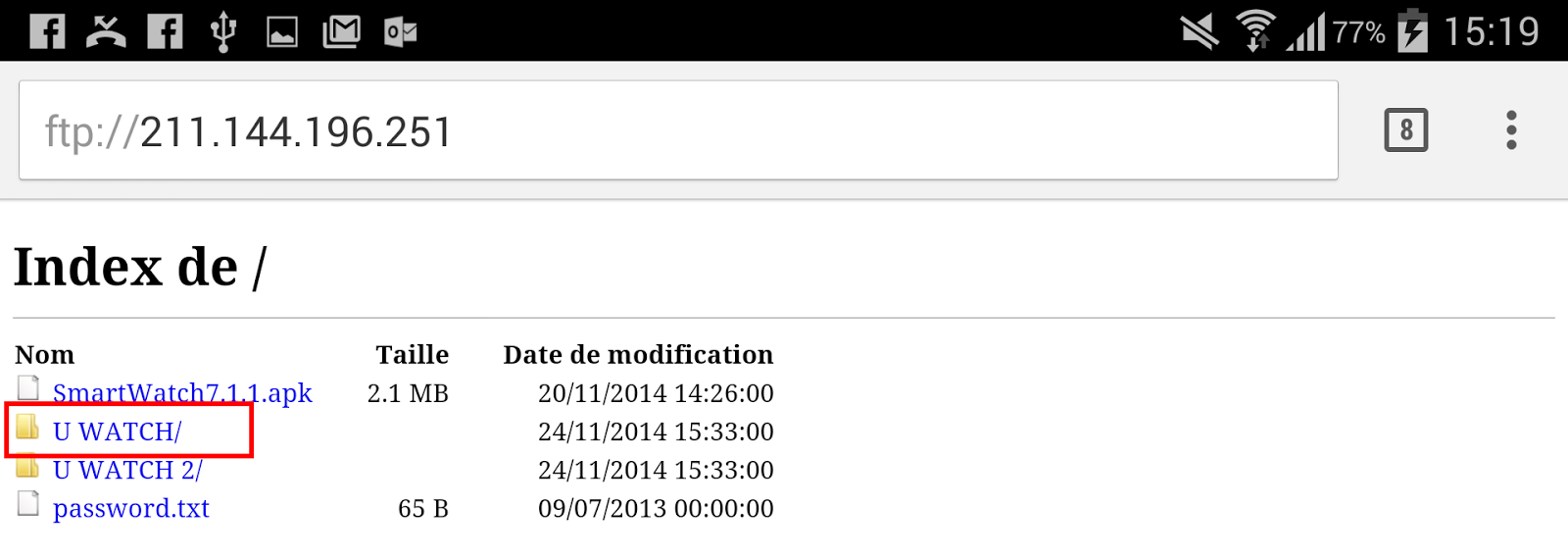
The Index window opens click on "U Watch"

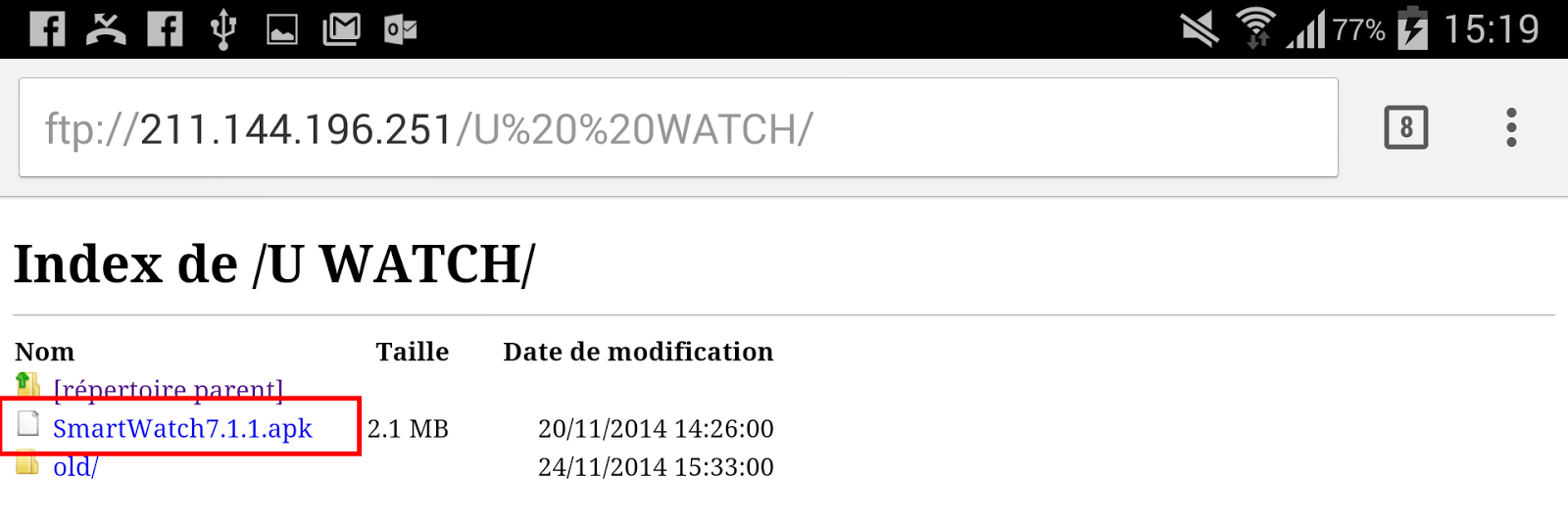
Once the "U Watch" directory displayed. click the "SmartWatch 7.1.1" file. The file uploads


Click images to enlarge

From your computer connected to internet


The approach is the same as described above but it will upload the file you plug in your phone in the "Downloads" with the USB cable from your phone. Do not forget to make your phone available for you to upload the software in your phone

 Installing software

Before installing the software you need to install the Bluetooth Notifier software to your phone from the Google Play Store it in order to allow the two devices to communicate. Once installed, open Bluetooth notify and enable detection "Activate detection".

Go back into the settings of your Android phone and go to the Bluetooth settings. You should see "Paired Devices" Watch your watch or U8 or R26. If this is not the case press the Search button and you will see. Press to pair it with your phone. You are asked if you want the watch to be connect to the phone. Press Accept


A final operation is required before installing SmartWatch. Since this software is not available on the Google Play Store, you need to install Android software from Unknown sources (Sources inconnues). To do this go to Settings - More - Security and check "Unknown sources". Do not forget to uncheck the end of the installation


Find on your phone and select the icon "My files." (Mes fichiers) Select "All Files" - Device storage - and finally "Downloads". Now press the SmartWatch 7.1.1.apk file. The installation starts, follow the on-screen instructions. *** Do not forget to uncheck "Unknown sources" in the "Security" tab once the installation is complete


Using the software


On your phone open Smarthwatch software U8 Watch or your M26 Rwatch


You are now on the home screen. To access some features you should be connected. Note that I was able to connect via the "Login" following the same steps. If you were successful, I would appreciate having information on how to connect to it and what is it used


Press "Try again" to access the interface of the software in Sports mode (default)


To take full advantage of the features that the software offers you need to enter some parameters on the watch. To do this access the Pedometer menu of your watch and type in the type of unit (imperial or metric), your weight and stride length. The software needs this information to give you the number of calories burned, distance traveled, etc ...


Now you see a large circle in the center with the note at the bottom of it "Switch to sleep" to give you information about your sleep. This panorama is described below in the page

Back to the default view "Sport". Once your watch pedometer based information about the number of calories burned, number of steps and distance will be displayed in real time

*** Note to reset the values of the information that we just mentioned simply press the button with the two arrows that turn on themselve. If it's doesn't work, go on your watch and select Pedometer and press Clear History

Down completely the panorama is displayed 3 buttons:

Customized : You can rename your watch with a more meaningful name than R26 or U8


Basic set : "SMS and Call service" allow the watch-out of receiving SMS messages and / or calls, "Close the audio media" is used to close or not the watch audio function to save power and "Always send notifications "allows or not display notifications even when the screen is off


Push set : Enable or disable receipt of notifications (Service Notification), select the types of notifications you want to receive on your watch (app Notification) and an application to block / unblock some applications (Blocked app). I must admit that I do not see the point of that function


Notification app


Swith to sleep

By pressing it you access the panorama on information related to your sleep is the time you have slept Deep, light sleep and the time you are awake. I have not used yet but I'll be back on it. If you've experienced I would appreciate, as well as readers, your appreciation:-)


I hope this information is helpful and feel free to contact me to give me your comments or questions. If you enjoyed this article, please click on the +1 or G + button and post it on your favorite social network in order to benefit as many people as possible

Regards

Jean linuxbbas Bernier

lundi 10 novembre 2014

SMARTHWATCH - logiciel - U8 Watch - M26 Rwatch

SMARTHWATCH version 7.1.1  -  Logiciel Android pour utiliser pleinement votre montre connectée / intelligente U8 Watch ou Rwatch M26


Smarthwatch est un complément logiciel pour la U8 Watch et Rwatch M26 avec des fonctionnalités comme sélectionner les notifications que vous désirez voir apparaître sur votre Smartwatch
aidant à conserver ou améliorer votre forme physique, à régler plus finement les fonctions connectées de la montre

*** Une description complète des fonctions de la U8 Watch est disponible à cette adresse et de la Rwatch M26 en suivant ce lien


Dans cet article vous verrez comment obtenir ce logiciel et l'installer et paramétrer montre et téléphone Android pour que les deux appareils puissent communiquer.

Vous verrez ensuite comment paramétrer finement les fonctions connectées, les fonctions de mise en forme (fitness) et l’utilisation des logiciels multimédias permettant la lecture de votre musique préférée contenues sur votre téléphone et la le tout commandé à distance à partir de celle-ci


Comment obtenir le logiciel SMARTHWATCH 

Si le logiciel est installé, rendez-vous plus dans cet article dans la section "Utilisation du logiciel"

Deux méthodes s'offrent à vous soient :

  • à partir de votre téléphone si celui-ci a accès à internet (vérifiez à ce qu'il n'y est pas de frais de téléchargement)
  • à partir de votre ordinateur relié à internet

À partir de votre téléphone si celui-ci a accès à internet 


  • ouvrez un navigateur internet et entrez l'adresse suivante sans les guillemets : "ftp://211.144.196.251"
  • une fenêtre vous demandant de vous identifier s'ouvre, entrez les informations suivantes :
  • Nom d'utlisateur : 123456
  • Mot de passe : 123456


La fenêtre Index s'ouvre cliquez sur "U Watch"


Cliquez sur l'image pour l'agrandir

Une fois le répertoire "U Watch" affiché. cliquez sur le fichier "SmartWatch 7.1.1". Le fichier se télécharge


Cliquez sur l'image pour l'agrandir


À partir de votre ordinateur relié à internet

La démarche est identique à celle décrite ci-haut mais il vous faudra branchez téléverser le fichier dans votre téléphone dans le répertoire "Downloads" avec le câble USB de votre téléphone. N'oubliez pas de rendre votre téléphone accessible pour que vous puissiez téléverser le logiciel dans votre téléphone


Installation du logiciel

Avant d'installer le logiciel il vous faudra installer le logiciel BlueTooth Notifier sur votre téléphone via le Google play Store ce ceci afin de permettre aux deux appareils de communiquer. Une fois installée, ouvrez Bluetooth notifier et activer la détection "Activate detection".

Retournez dans les paramètres de votre téléphone Android et allez dans les paramètres Bluetooth. Vous devriez voir dans "Périphériques couplés" votre montre soit U8 Watch ou R26. Si ce n'est pas le cas appuyé sur le bouton Rechercher et vous la verrez apparaître. Appuyez dessus pour la coupler à votre téléphone. Un message vous demande si vous voulez que la montre soit connecter au téléphone. Accepter


Une dernière opération est nécessaire avant l'installation de SMARTWATCH. Étant donné que ce logiciel n'est pas disponible sur le Google play Store, vous devez autoriser Android à installer des logiciels de sources inconnues. Pour se faire Aller dans Paramètres -- Plus -- Sécurité et cochez la case "Sources inconnues". N'oubliez pas de la décocher à la fin de l'installation

Sur votre téléphone trouvez et sélectionnez l'icone "Mes fichiers". Sélectionnez "Tous les fichiers" --  Device storage -- et finalement "Downloads". Maintenant appuyez sur le fichier SmartWatch 7.1.1.apk. L'installation démarre, suivez les instructions à l'écran. ***N'oubliez pas de décocher "Sources inconnues" dans l'onglet "Sécurité" une fois l'installation complétée

Utilisation du logiciel


Sur votre téléphone ouvrez le logiciel Smarthwatch de la U8 Watch ou de votre M26 Rwatch


Vous voici maintenant sur l'écran d'accueil. Pour accéder à certaines fonctions vous devrez être connecter.    Notez que je n'ai pu me connecter via la fonction "Login" même en suivant les étapes. Si vous avez réussi, j'apprécierais avoir l'information à savoir comment s'y connecter et quelle est son utilité

Appuyez sur "Try again" pour accéder à l'interface du logiciel en mode Sports (par défaut)


Pour bénéficier pleinement des fonctions que le logiciel vous offre vous devez entrer quelques paramètres sur la montre. Pour ce faire accéder au menu Pédomètre de votre montre et entrez-y le type d'unité (impérial ou métrique), votre poids et la longueur de votre pas. Le logiciel a besoin de ces informations pour vous donner le nombre de calories brûlées, la distance parcourue, ect...


Maintenant vous voyez un grand cercle au centre avec la mention au bas de celui-ci "Switch to sleep" pour vous donner des informations relatives à votre sommeil. Ce panorama est décrit plus bas dans la page

Revenons au panorama par défaut "Sports". Une fois le Pédomètre de votre montre en fonction les informations sur le nombre de calories brûlées, nombre de pas et distance parcourue s'affichent en temps réel

*** Notez pour réinitialiser les valeurs des informations que l'on vient de mentionner vous n'avez qu'à appuyer sur le bouton avec les 2 flèches qui tournent sur elles-mêmes

En bas complètement du panorama s'affiche 3 boutons :


Customized : permet de renommer votre montre avec un nom plus explicite que R26

Basic set :      "SMS service et Call service" permettent à la montre ou non de recevoir vos SMS et/ou appels, "Close the media audio" permet de fermer ou non la fonction audio de la montre pour économiser de l'énergie et "Always send notifications" permet l'affichage ou non des notifications même si l'écran est éteint

Push set :       permet ou non la réception des notifications (Notification service), sélectionner les types de notifications que vous voulez recevoir sur votre montre (Notification app) et une application qui permet de bloquer / débloquer certaines applications (Blocked app). Je dois avouer que je ne vois pas l'utilité de cette dernière fonction 
Notification app


Swith to sleep


En appuyant sur celui-ci vous accéder au panorama relatif aux informations liées à votre sommeil soit le temps que vous avez dormi profondément (Deep sleep), dormi légèrement (Light sleep) et le temps que vous êtes éveillé (Awake). Je ne l'ai pas utilisé encore mais je vous reviens à ce sujet. Si vous l'avez expérimenté J'apprécierais, ainsi que les lecteurs, votre appréciation :-)


J'espère que ces informations vous seront utiles et n'hésitez pas à communiquer avec moi pour me donner vos appréciations ou vos questions. Si cet article vous a plû, n'hésitez pas à cliquez sur le bouton +1 ou G+ et l'afficher sur votre réseau social préféré ceci afin d'en faire bénéficier le plus grand nombre de personnes possibles

Bonne journée !

Jean linuxbbas Bernier


Cet article sera complétée sous peu